Your beautiful garden photos and helpful planting guides deserve to reach every member of your audience, including the millions of gardeners with visual impairments, color blindness, or other accessibility needs. Making your graphics inclusive isn’t about complicated design overhauls—it’s about simple, thoughtful choices that strengthen your entire welcoming gardening community.
Add descriptive alternative text to every image you share. Instead of writing “tomato plant,” describe what matters: “Cherokee Purple tomato plant with dark pink fruit at shoulder height, supported by bamboo stakes.” This allows screen readers to paint the picture for visually impaired gardeners who rely on your expertise.
Choose color combinations with sufficient contrast, especially for text overlays on garden photos. That pale yellow font might look elegant against your lavender blooms, but many readers won’t be able to read your companion planting tips. Free online contrast checkers take seconds to verify your choices work for everyone.
Design infographics and planting calendars with patterns and labels, not color alone. When creating your zone map or vegetable rotation chart, distinguish sections with different textures or clear text labels alongside your color coding. Color-blind gardeners will thank you.
Keep fonts clean and readable at 16 points minimum for body text. Ornate script headers are charming, but your step-by-step propagation instructions need clarity above all. Sans-serif fonts generally perform best across devices and abilities.
What Accessible Graphic Design Really Means for Garden Content
The Gardeners You’re Missing Without Accessible Design
When you create gardening content without accessibility in mind, you’re inadvertently closing the garden gate on a surprisingly large and diverse community of plant lovers.
Consider the experienced gardeners in their 60s and beyond who’ve spent decades nurturing their plots. As we age, our vision naturally changes—text that once seemed perfectly readable can become frustratingly blurry, and distinguishing between similar colors becomes challenging. That gorgeous infographic using lime green text on a white background? It might be invisible to someone with reduced contrast sensitivity, no matter how much gardening wisdom it contains.
Then there’s color blindness, affecting roughly 1 in 12 men and 1 in 200 women. When you label your planting zones solely by color, or create a chart showing “red for full sun, green for shade,” you’re excluding millions of potential readers who simply can’t differentiate between those hues. I once spoke with a master gardener who admitted he’d struggled for years with color-coded plant tags before finally creating his own system using patterns and symbols.
People with cognitive differences, including dyslexia or attention disorders, benefit enormously from clear layouts, simple fonts, and well-organized information. Dense paragraphs with tiny text can transform helpful advice into an overwhelming wall of words.
And let’s not forget the growing number of gardeners who rely on screen readers and other assistive technologies. Without proper image descriptions and thoughtful design, your beautiful garden photographs and helpful diagrams become completely inaccessible to blind and visually impaired gardeners who are just as passionate about growing things as anyone else.
Color Choices That Every Gardener Can See
Testing Your Garden Graphics for Color Accessibility
Testing your visual content for color accessibility doesn’t require expensive software or technical expertise. Several free, user-friendly tools make it simple to ensure your garden photos and graphics work for everyone.
Start with the WebAIM Contrast Checker, a straightforward online tool where you input your text and background colors to instantly see if they meet accessibility standards. I use this whenever I’m creating text overlays for my plant identification infographics. Simply enter your color codes or use the color picker on your design, and it tells you whether your combination passes or needs adjustment.
The Sim Daltonism app (for Mac) or Color Oracle (for Windows and Mac) let you preview your images exactly as people with different types of color vision deficiency see them. It’s eye-opening! I once discovered my carefully labeled tomato variety chart was nearly unreadable for people with red-green color blindness because I’d used red and green labels. These simulators helped me switch to blue and orange instead.
For a quick manual check, convert your images to grayscale. If elements blend together or text disappears, you know there’s an accessibility issue. This simple trick works wonderfully when you’re reviewing seed packet designs or garden layout plans.
Remember, testing isn’t about achieving perfection on your first try. Each check teaches you something new about creating more inclusive garden content that reaches and inspires more people.
Typography and Text That Works in the Garden and Online
Making Plant Names and Instructions Easy to Read
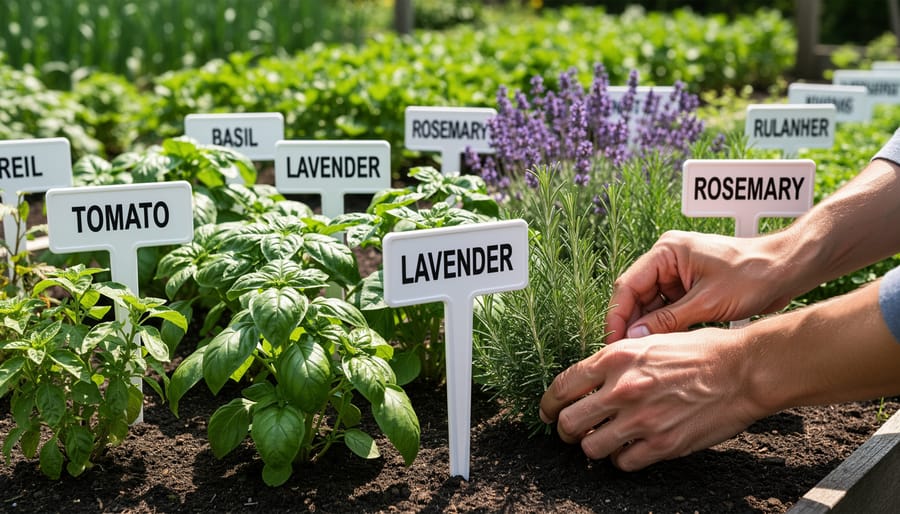
Botanical names can feel intimidating, but presenting them clearly makes all the difference for your readers. Start by pairing Latin names with common names, placing the familiar term first to build confidence. For example, write “Tomato (Solanum lycopersicum)” rather than the reverse. This simple swap helps beginners feel welcomed while still educating them about proper plant nomenclature.
When it comes to typography, resist the urge to italicize entire botanical names in body text, as italics can strain readers with dyslexia or visual processing differences. If you’re creating a plant list or label, consider using a clear distinction like a different color or placing the botanical name in parentheses instead.
Step-by-step instructions deserve extra attention to accessibility. Number each step clearly and keep one action per step whenever possible. Rather than writing “Water thoroughly and apply mulch around the base,” break this into Step 1: Water thoroughly, and Step 2: Apply mulch around the base. This chunking helps readers who might need to pause and return to instructions later.
Use simple, active language that describes exactly what to do. Instead of “The soil should be amended prior to planting,” try “Mix compost into your soil before planting.” This direct approach benefits everyone, especially those reading in a second language or managing cognitive differences.
For plant care information, consider creating visual checklists or icons alongside text. A simple sun symbol next to “full sun” or a water droplet beside watering frequency reinforces your message without relying solely on words. These visual cues create multiple pathways to understanding, making your content truly accessible to diverse learners.
Infographics and Visual Guides Everyone Can Follow
Adding Alt Text to Your Garden Photos and Graphics
Alt text is like giving someone a friendly verbal tour of your garden images—it helps screen reader users experience what sighted visitors see on your website. When you’re sharing your beautiful garden photography or instructional graphics, thoughtful alt text ensures everyone can appreciate your hard work.
Start by asking yourself: What’s the purpose of this image? For plant identification photos, describe the key features that matter. Instead of simply writing “flower,” try “purple coneflower with drooping pink petals and spiky orange center.” This specificity helps readers understand exactly what they’re looking at.
For garden layout diagrams, explain the spatial relationships. You might write: “Raised bed garden layout showing tomatoes in the back row, basil in the middle, and lettuce along the front edge.” This gives context that a screen reader user can visualize.
When creating alt text for step-by-step tutorials, focus on the action being demonstrated. Rather than “hands in soil,” describe “hands pressing dahlia tuber three inches deep into prepared garden bed.” The detail makes the instruction useful.
Keep your descriptions concise but meaningful—aim for one to two sentences. Avoid starting with “image of” or “picture of” since screen readers already announce it’s an image. Skip decorative borders or backgrounds unless they’re essential to understanding the content.
If an image contains text, like plant labels or infographics, include that text in your alt description. For complex diagrams, consider adding a longer description in your main content that everyone can benefit from.
Remember, you’re not just checking a box—you’re welcoming more people into your gardening community. Each thoughtful description you write opens your knowledge to someone who might otherwise miss it.
Simple Design Tweaks That Make a Big Difference
Creating Accessible PDF Garden Plans and Worksheets
Garden planning PDFs can be incredibly helpful resources for your readers, but they need to be designed with accessibility in mind to serve everyone in your community. Let’s make sure your downloadable planting calendars, seed starting schedules, and garden layout guides work beautifully for people using screen readers and other assistive technologies.
Start by creating your PDFs from accessible source documents rather than scanning paper copies. When you’re building a planting schedule in a program like Microsoft Word or Google Docs, use the built-in table features instead of drawing lines or using spaces to create columns. Screen readers navigate these structured tables much more easily, announcing row and column headers as users move through your seed starting dates.
Add alternative text descriptions to all images in your garden plans. For a raised bed layout diagram, your alt text might read “Four raised beds arranged in a square pattern, each measuring 4 by 8 feet, with 3-foot pathways between them.” This gives screen reader users the same spatial understanding you’re providing visually.
Use descriptive hyperlinks rather than generic phrases. Instead of “click here for companion planting guide,” write “download our companion planting guide for tomatoes and basil.” This helps everyone navigate your resources more efficiently.
Before sharing your PDF, run it through an accessibility checker. Adobe Acrobat has a built-in tool, and there are free online checkers available. These tools identify missing alt text, improper heading structure, and other barriers that might frustrate your readers. Making these small adjustments ensures your carefully crafted garden planning resources truly serve your entire gardening community.
Tools and Resources to Check Your Garden Content
Making your garden graphics accessible doesn’t require expensive software or a design degree. Several free, user-friendly tools can help you evaluate and improve your content right away.
Start with color contrast checkers, which ensure your text stands out clearly against backgrounds. WebAIM’s Contrast Checker is wonderfully straightforward—just enter your text and background colors, and it tells you instantly whether they meet accessibility standards. I use this before creating any plant identification graphics or infographic headers. Another excellent option is Coolors’ contrast checker, which includes a color blindness simulator so you can see how your tomato-growing guide appears to readers with different types of color vision.
For overall design evaluation, WAVE (Web Accessibility Evaluation Tool) analyzes entire web pages, highlighting issues with images, text, and layout. It’s perfect for checking your garden blog posts before publishing. The tool provides clear explanations for each issue, helping you learn as you go.
Don’t overlook built-in accessibility features in programs you might already use. Canva’s free version includes an accessibility checker that reviews contrast and suggests improvements. Adobe’s free Color tool helps you create accessible color palettes for your seasonal planting calendars or garden planning worksheets.
Making accessibility checks part of your routine is simpler than you might think. I recommend adding a quick five-minute review before publishing any content. Check your contrast ratios first, verify all images have descriptive alt text, then run a final scan with WAVE or your preferred tool. Think of it like checking your garden for pests—a regular habit that prevents bigger problems down the road.
As you become more comfortable with these tools, accessibility evaluation will feel as natural as proofreading. You’ll start instinctively choosing better color combinations and writing clearer descriptions, creating garden content that welcomes everyone into your green space.
Creating accessible graphic design for your gardening content isn’t about limiting your creativity or settling for less beautiful materials. Think of it as expanding your garden to welcome more visitors. Just as you’d install a ramp alongside decorative steps or choose fragrant plants for those who can’t see colors clearly, accessible design invites everyone to experience the joy and satisfaction that gardening brings.
The beauty of accessible design is that it often makes your content better for everyone. High-contrast text is easier to read on bright sunny days when you’re checking instructions on your phone in the garden. Clear, simple layouts help rushed readers quickly find the information they need. Descriptive image captions benefit not only screen reader users but also anyone with a slow internet connection waiting for images to load.
You don’t need to overhaul everything at once. Start small. Perhaps begin by adding alternative text to the photos in your next blog post, or choose a more readable font for your upcoming workshop flyer. Each small change builds momentum and understanding. As you incorporate these practices, you’ll find they become second nature, like remembering to water your seedlings each morning.
By making your gardening content accessible, you’re cultivating a more inclusive community. You’re ensuring that the teenager with dyslexia can follow your composting guide, the retired gardener with vision loss can enjoy your plant care tips, and the parent using a screen reader can access your seasonal planting calendar. When we design with intention and care, we help gardening knowledge flourish and reach every person who seeks it.